Scanned PDF Not Searchable? How to Make the Text Selectable
Not every unsearchable PDF is a scan. Drag your cursor across a line first: if nothing highlights, OCR is the fix, but if the text already selects and Ctrl+F still comes up empty, this walks through the test that sorts your file into one of five actual causes.
Drag your cursor across a line of text on the page. If nothing highlights, you're looking at a picture of text, and OCR (optical character recognition) is the fix. If words highlight but Ctrl+F still comes up empty, stop. OCR isn't automatically your answer: the file already holds real text, and something else is stopping search from reading it.
Not every unsearchable PDF is a scan. That's the assumption almost every guide on this topic makes, and it's wrong for at least half the reasons Ctrl+F actually fails. What follows sorts your file into one of five states in about a minute, then gives you the fix that matches.
TL;DR: drag across the page. Nothing highlights? It's an image, and OCR is the fix. Text highlights but Ctrl+F still fails? The file holds real text whose fonts carry no reliable Unicode mapping, a different problem entirely. Run pdffonts yourfile.pdf and read the uni column before you run OCR on anything, because OCR fixes one of these problems and makes the other one worse.
Is It the File, or Is It the Viewer?
Rule this out first: two documented cases had nothing wrong with the file at all. Search is a function of the viewer as much as the file, and two viewers can disagree on the same bytes.
Try a second PDF viewer before you assume the file is broken. In an Adobe Community thread, one user confirmed a search discrepancy on the same document: "Chrome's PDF reader finds it just fine, and agrees there are 22 results." A cache purge fixed it for one user in that thread and, per a later reply, "did not work for me" (Adobe Community, 2022-2025).
Check your cursor too. Some viewers have a "hand" tool for scrolling rather than selecting, and dragging does nothing while it's active even though the text itself is fine. And if copy is blocked but search still finds your term, that's a permissions flag, not a missing text layer. The two get treated as the same problem, and they aren't.
If any of those is your answer, stop here. Running OCR on a working file doesn't fix anything. It just rasterizes text that already worked.
How to Tell What Kind of PDF You Actually Have
Three checks, about a minute total, sort your file into one of five states, and the state you land on determines the fix. This is the step nearly every guide on this topic skips in favor of jumping straight to OCR.
Check one: select the text. Drag your cursor across a line. The Second Circuit's e-filing guidance describes the tell well: on an image-only PDF, the whole page turns blue when you try to select it (Second Circuit, last modified 2016-05-23). Nothing highlighting means no text objects at all, a picture, full stop: ABBYY's plainest PDF type, one that "contains just the scanned/photographed images of pages, without an underlying text layer" (ABBYY).
Check two: paste into a plain text editor, not Word. Word can re-render fonts and mask a failure a plain editor won't hide. Boxes, question marks, or wrong letters mean the text selected, but the characters underneath don't match what you're reading. Nobody else publishes this check, and it catches the state below.
Check three: run pdffonts. From a terminal, run pdffonts yourfile.pdf (install with brew install poppler). Empty output means no fonts, confirming a scan. If fonts are listed, read the uni column: poppler's manual defines it as "yes" if there's an explicit ToUnicode map, though its absence "doesn't necessarily mean that the text can't be converted to Unicode" (poppler-utils pdffonts(1), 22.12.0-2+deb12u1). A font named GlyphLessFont means a Tesseract-based OCR pass already ran, whether or not it worked.
| Symptom | State | What to do | What NOT to do |
|---|---|---|---|
| Nothing highlights on drag-select | No text objects: scan, photo, or rasterized file | Run OCR | N/A |
| Text highlights, pastes as boxes or gibberish | Real text, no reliable Unicode map | Run OCR, or get the source re-issued | Assume the file is a scan |
| Text pastes clean, but Ctrl+F misses words | OCR layer exists and is wrong | Re-run OCR at higher resolution | Trust the layer without checking it |
| Search works in one viewer, not another | File is fine; the viewer isn't | Try a second viewer, or purge its cache | Run OCR on a working file |
| Copy blocked but search still works | Permission flag, not a missing text layer | Check document permissions | Run OCR; it won't touch permissions |
Why Did Your Scanner Produce a Picture Instead of Text?
Because on most scan paths, text recognition is a setting you have to turn on, and on some hardware it's a part you have to buy separately. Nobody wrote a bad scan on purpose; the option was probably just off, or not installed.
On Ricoh's IM C300 and C400 series MFPs, the manual is direct: "The optional OCR unit is required to use this function" (Ricoh User Guide), a paid accessory rather than a free setting.
Other vendors bury it differently: a radio button labelled Searchable on Xerox (Xerox KB0030286, 2019-09-26); OCR (Text Searchable) on Canon, which notes "italic type cannot be recognized" (Canon e-Manual); an OCR component bundled with Epson's scanner software, so a partial install can leave it missing (Epson support); and a checkbox on Fujitsu's ScanSnap (ScanSnap Home Help).
Every manual explains how to turn OCR on; not one states the factory default, which is why I won't claim most scanners default to image-only, as much of the field does without evidence.
Phone scans are the open question. Google says its Drive app saves "searchable PDFs" from a phone scan, but doesn't say whether the text lives inside the file or only in Drive's index, server-side (Google Drive Help). Apple says nothing about a text layer at all. Until I've run pdffonts on a fresh scan from both, I won't guess.
If you're producing the scan yourself, scan a document to PDF and run the checks above before you send it anywhere.
| Vendor | Setting name | Documented default |
|---|---|---|
| Ricoh | OCR Settings (needs optional unit) | Not documented |
| Xerox | Searchable | Not documented |
| Canon | OCR (Text Searchable) | Not documented |
| Epson | Searchable PDF | Not documented |
| ScanSnap (Fujitsu) | Convert to Searchable PDF | Not documented |
Why Does Ctrl+F Fail on a PDF That Has Real Text?
Because the viewer draws each glyph from a font, and searching needs to know which character that glyph actually is. Those are two separate lookups. The glyph lookup makes the page render correctly and can succeed entirely on its own. The Unicode lookup is a separate map inside the same font: this glyph equals this character, and when it's missing or scrambled, search and copy have nothing to match against, even though the page looks exactly right. The same pdffonts and plain-text-paste checks from the section above separate this state from a working file.
PDF/A, the archival version of the format, has a conformance level built for this exact gap. Level "u" requires Unicode mapping for every character in the document, and veraPDF, the open-source reference validator, flags a file with the literal error "The glyph can not be mapped to Unicode" when it doesn't (veraPDF PDF/A-2u profile). A file can be fully valid PDF/A-2b, print perfectly, and still fail PDF/A-2u.
This shows up in the forums too, twelve years apart on unrelated files. In 2012, an Adobe Community user had text that selected and was even editable, yet Ctrl+F returned nothing; an expert diagnosed it: "For find / search to function the fonts in a PDF must map to Unicode" (Adobe Community, 2012-09-20).
In 2024, another poster hit the identical wall, titling their thread "Not scanned, maybe vector, but some text included." An expert found text with "no correlation to proper Unicode character pairing" (Adobe Community, 2024-12-20), and the poster needed Acrobat's "Force OCR" option, reporting the file growing from 1.78 MB to 5.95 MB, one user's report on one file, not a benchmark. Treat both diagnoses as forum expert opinion, not settled fact; getting the source reissued with clean fonts, where possible, avoids the round trip entirely.
How to Make a Scanned PDF Searchable
Run OCR, which reads the picture of your words and writes an invisible layer of matching text positioned over it. If your file passed checks one and two above, skip this. OCR would just rasterize a document that already works.
Here's what that layer physically is, because it explains a symptom you'll hit later. Tesseract, the engine behind a large share of PDF OCR tools including OCRmyPDF, writes the literal string BT, followed by a newline and 3 Tr, into the page's content stream, commented in its own source as "Begin text object, use invisible ink" (Tesseract source, pdfrenderer.cpp), in a font it names GlyphLessFont. That's text rendering mode 3, defined in the PDF specification itself at ISO 32000-2:2020 clause 9.3.6.
One more detail explains why OCR text sometimes pastes with odd spacing: Tesseract's renderer deliberately projects every word onto a single straight baseline, because, in the developer's own comment, viewers "can get really confused during copy-paste when the baseline wanders around." A skewed scan doesn't sit on a straight line, and the layer pretends it does.
If you're not using JoyPDF: rescan at 300 dpi or better if you still have the original, straighten the page, then run OCR with the correct language selected. A mismatched language setting quietly tanks recognition with no visible sign of why.
You can also do it without leaving your browser. JoyPDF has a tool that will add a searchable text layer with OCR to a scanned PDF, and because the recognition step runs on your device rather than on a server, the file is never uploaded to do it.
What OCR Does Not Fix
It adds a layer of text positioned over the picture. It does not touch the picture itself, and it will not tell you when it got a word wrong.
It doesn't sharpen anything. The US National Archives' guidance for permanent electronic records, since superseded but still the clearest statement on this, accepted PDFs "OCR'd using processes that do not alter the original bit-mapped image" (NARA, last reviewed 2020-01-24). A blurry scan stays blurry under an OCR layer; why compression softens a scan covers the real cause.
It fails silently, which catches people off guard. A wrong character doesn't look wrong on the page; it just means a search for that word never finds it. Even OCRmyPDF's own documentation concedes the tool "may detect gibberish and report it as OCR output" (OCRmyPDF docs, v17.0.0). A text layer existing isn't the same thing as it being correct.
It doesn't make the document editable or preserve structure, and it can't read handwriting. OCRmyPDF's own documentation says it keeps no paragraphs, headings, or font family information, and states plainly it "is incapable of recognizing handwriting." Tesseract's FAQ agrees: "You can, but it won't work very well, as Tesseract is designed for printed text" (Tesseract FAQ). For an editable document, converting the PDF to Word is the more direct route; for handwriting, no amount of scan quality gets you there.
What Makes OCR Fail, and How Do You Give It a Better Page?
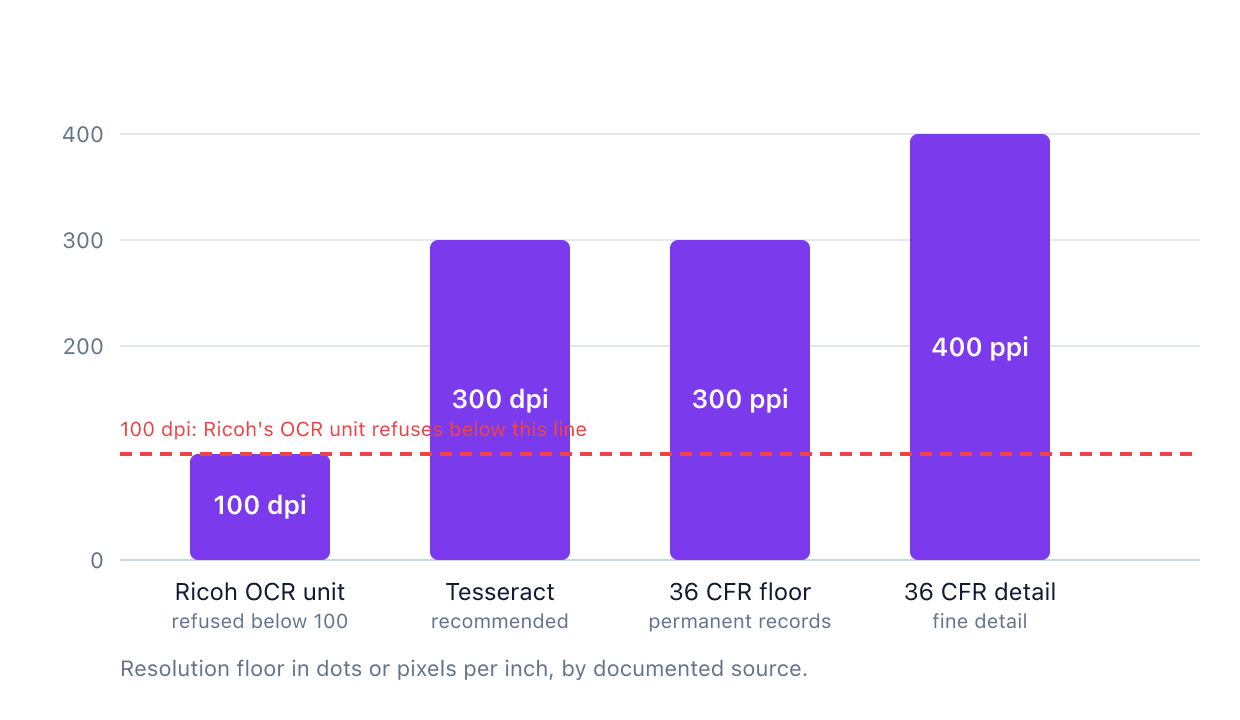
Recognition quality gets decided before any software runs, by the scan itself. Resolution, skew, and contrast do more to the result than which OCR tool you pick.
Resolution matters most. Tesseract's own documentation states it plainly: "Tesseract works best on images which have a DPI of at least 300 dpi" (Tesseract, ImproveQuality). Ricoh's hardware goes further and simply refuses: its OCR unit can't be used at 100 dpi at all, a hard vendor-documented floor rather than a recommendation.
Documented resolution floors for OCR and permanent digital records come from three unrelated sources, and they cluster near the same number for different reasons. Ricoh's optical character recognition unit refuses to run below 100 dpi (Ricoh User Guide). Tesseract recommends at least 300 dpi (Tesseract, ImproveQuality). The US National Archives requires 300 pixels per inch for permanent textual records and 400 pixels per inch where fine detail must survive (36 CFR section 1236.50).
Two unrelated OCR engines converge on the same number, which is what makes 300 dpi more than folklore. Google's Drive scanner requires "Text should be at least 10 pixels high" (Google Drive Help), and Tesseract's archived FAQ, covering versions up through 4.00.00alpha as of May 2018, says almost the same thing: "Below an x-height of 10 pixels, you have very little chance of accurate results" (Tesseract archived FAQ, archived 2018-05-01). That turns "300 dpi" into something you can check by measuring your own scan.
Skew matters too: Tesseract says line segmentation "reduces significantly if a page is too skewed," and Canon's suitable-originals list says "no character slant." Neither puts a number on it, so I won't invent a curve here; straighten the page before you run OCR, not after. Contrast and language matter less but still count. Tesseract's binarization "can be suboptimal, particularly if the page background is of uneven darkness," and Epson notes the language setting has to match the document exactly.
One more honest note on accuracy: character accuracy and word accuracy are different numbers on the same file, since one wrong character usually ruins the whole word. Anyone who quotes a flat accuracy percentage without saying which one they mean hasn't told you anything you can plan around.
When Is a Searchable PDF a Requirement, Not a Preference?
For some court filings and for accessibility compliance, a picture of text isn't an acceptable document at all, regardless of how it looks on screen or in print.
Two federal courts require text-searchable PDFs under local rule, the Second Circuit and the Southern District of Florida, with a documented exception for handwritten, photographic, and graphic material (S.D. Florida FAQ). Rules vary by court, so check yours, but the checks earlier in this article are close to what a clerk would run.
Accessibility is the stronger, more underused argument. The W3C is direct: a document made of scanned images of text "is inherently inaccessible because the content of the document is images, not searchable text," and assistive technologies "cannot read or extract the words" (W3C, WCAG 2.2 Technique PDF7, updated 2025-07-15). OCR is the named remedy, sufficient for WCAG Success Criterion 1.4.5 at Level AA, which the Revised Section 508 Standards incorporate in the US.
Archives explain why so much institutional paper ends up image-only. US federal record digitization rules set a 300 pixel-per-inch floor for permanent textual records, 400 for fine detail, and say nothing about OCR anywhere (36 CFR section 1236.50). The two 300s you'll see everywhere, the federal imaging floor and Tesseract's recognition recommendation, land on the same number for unrelated reasons: one is image fidelity, the other is recognition.
The Short Version
Three lines, and you probably already know which one is yours. Nothing highlights: it's an image, and OCR is the fix. Text highlights but pastes as gibberish: a broken Unicode map, a different problem entirely. Text pastes clean but search still misses it: look at the viewer, not the file.
OCR is the right answer to exactly one of those, and the wrong answer to the rest. Run it on a file that didn't need it, and you've rasterized a working document to solve a problem it never had.
"Not searchable" gets treated as one problem, mostly because "run OCR" is a satisfying answer. It's actually five different problems wearing the same symptom, and a minute of checking tells you which one you've got.