Why Your PDF Is Blurry After Compressing It
A PDF compressor does two separate, irreversible things to a file: it downsamples the images and re-encodes what remains with a lossy codec. Here is how to tell which one hit your file, and what still works afterward.
A PDF compressor does two separate destructive things to a file, and neither one is reversible. It downsamples the images, which throws pixels away permanently. Then it re-encodes what is left with a lossy codec, which degrades the page at unchanged resolution. Nothing undoes either step. Tools advertising decompression are describing a different operation, and upscaling invents plausible detail rather than restoring the real thing. The route back is the original file.
The useful part is that the two operations leave different marks. Uniform softness at every zoom level means pixels were removed. A page that still looks sharp overall but carries grain and banding along glyph edges means the codec was pushed too hard. Work out which one hit your file and you know whether the setting was wrong or the source was.
TL;DR: Compression reduces file size mainly by downsampling images to fewer pixels and re-encoding them with a lossy codec. Both discard data permanently. Blur is not always a resolution problem, because re-encoding degrades a page at unchanged resolution. Compressing a second time compounds the damage, since the second pass re-encodes an image that already lost detail. I pick the setting that matches how the document will be viewed, not the lowest one available.
Is the file actually blurry, or is it the viewer?
Check this first. It costs ten seconds and it is occasionally the whole answer.
Zoom to 100 percent rather than fit-to-width. Fit-to-width scales the page to your window, and the viewer resamples the page image to do it. At 100 percent you are looking at the file rather than at the viewer's arithmetic.
Then open the same file in a second application. Acrobat, Preview, Chrome and Firefox each rasterise a page with their own code. A PDF image can also carry a flag asking the reader application to smooth it when displayed at a size other than its natural one, and honouring that request is optional. So the same bytes can look soft in one viewer and crisp in another.
If the page looks fine at 100 percent elsewhere, nothing was lost. If it looks the same in every viewer, the damage is in the file.
Why is my PDF blurry after compression?
Because the compressor did two independent things to the images on the page, and each one damages it in its own way.
Downsampling decodes an image and resamples it onto a smaller pixel grid. A page scanned at 300 pixels per inch (ppi, samples per inch of original paper) becomes a page at 150 ppi, a quarter as many samples, none of them recoverable.
Re-encoding keeps the pixel count but degrades what each pixel says. ITU-T T.81 places DCT-based processes in the lossy class (clause 4.2) and gives the mechanism in clause 4.3: the image divides into 8x8 blocks, each becomes 64 coefficients, divided by a value from a quantization table before storage.
A hard black-to-white transition needs high-frequency coefficients, and quantization discards those first, so the edge overshoots and oscillates before settling. Every glyph edge on a scan does this, in 8-pixel neighbourhoods, the block size.
Colour is the third mechanism. The libjpeg-turbo cjpeg manual, current as of 2024-08-30, sets default quality at 75 and default chroma subsampling at 4:2:0: one colour sample per 2x2 luminance block, halving colour resolution before quantization. It is why colour marks smear while black text nearby stays clean.
There is no standard quality scale: T.81 states "No default values for quantization tables are specified in this Specification," so quality 60 in one tool and quality 60 in another are two different tables producing two different images.
| What you see | Which operation | How to check | What can be done |
|---|---|---|---|
| Uniform softness at every zoom, thin strokes thickened or missing | Downsampling | Zoom to 400 percent. No further detail appears, because none is stored. | Nothing. The samples are gone. |
| Sharp at a glance, but grain and light and dark banding hug the glyph edges | Lossy re-encoding | Zoom to 400 percent on a black serif against white. Artefacts sit in small square neighbourhoods. | Nothing to this copy. A gentler setting, run again from the original, avoids it. |
| Colour marks smear and fringe while black text beside them is fine | Chroma subsampling | Compare a coloured stamp against body text on the same page. | Re-encode from the original without chroma subsampling, or in greyscale. |
| Everything including the headings is fuzzy, and no text selects | The page was rasterised | Try to select any text. Nothing highlights. | Find the file from before the rasterisation. |
What your compressor actually did
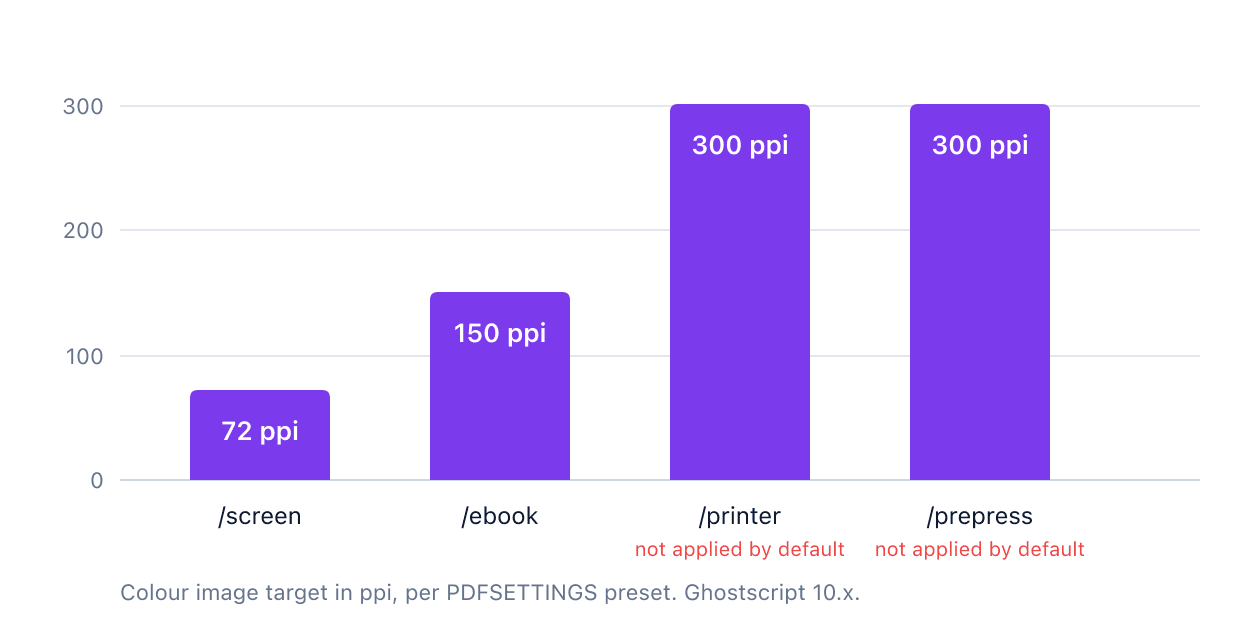
Probably less than you assume, or more, depending on preset. Ghostscript's VectorDevices documentation lists the preset values current in the 10.x series (10.08.0 at writing), and they are not what the cheat sheets say: check them against your installed version, since they change between releases.
DownsampleColorImages is false for /printer and /prepress, so neither downsamples colour images by default. That 300 ppi ceiling never actually applies: run /printer expecting a resample and get none.
The threshold column explains the opposite complaint: an image is downsampled only when its resolution exceeds 1.5 times the target. /ebook leaves anything at or below 225 ppi alone, and /screen ignores anything at or below 108 ppi, the documented reason a compressor sometimes does nothing to a scan.
The resample method is the third variable. /screen and /ebook default to /Average; only /prepress uses /Bicubic. With no preset, /Subsample (nearest neighbour) applies, the crudest option.
Every quality control in that Ghostscript parameter list is an Image parameter: DownsampleColorImages, ColorImageResolution, ColorImageDownsampleThreshold, ColorImageDownsampleType, plus greyscale and monochrome equivalents. There is no text counterpart: an outline glyph has no resolution to resample.
Acrobat has an optimizer of its own. I could not find its defaults documented, nor have I read the dialog with a version number in front of me. On the codecs themselves, Nutrient's breakdown of PDF compression methods is the better page.
This article's own fix is available too: compress a PDF in your browser. I wrote that compressor, which is why I can tell you what it does: JoyPDF runs the decode, the resample and the re-encode inside the browser tab. The scan is never put on the wire.
Not every compression failure looks blurry though. JBIG2 is a bilevel format built for scanned text, and its lossy mode works by symbol matching: it stores one copy of each repeated shape and points at that copy wherever the shape appears. When two shapes are similar but not identical, the match can be wrong, and the page is rebuilt with a different character in place, rendered perfectly crisply.
The PDF specification concedes it. FlateDecode is defined as reproducing "the original text or binary data." JBIG2Decode is defined as reproducing "the original monochrome (1 bit per pixel) image data (or an approximation of that data)," per ISO 32000-1's filter table (Table 6).
It has happened in production. In 2013 David Kriesel found scanned construction plans coming back with a room's area shown as a different number, with no visual sign of damage. Xerox titled its own knowledge base article Random Character Switching When Scanning Using JBIG2 Compression, published 2021-03-18. Blur, at least, announces itself.
Why blurry text means the page is an image
Because a compressor does not touch text that is stored as text. If your text is blurry, the page was already a picture of text, or something turned it into one.
A glyph drawn from a font is a set of outlines and coordinates, resolution independent by construction. The viewer fills those outlines at whatever size you ask for, so there is no pixel grid to resample.
Route one is that it was always a scan. The words were pixels from the moment the paper went through the feeder, and they degrade the way a photograph does. It is also why the file needed compressing in the first place.
Route two is that a tool rasterised the page. Ghostscript's Devices documentation covers devices that do this deliberately. Of pdfimage8, pdfimage24, pdfimage32 and pclm it says these devices render input to a bitmap, then wrap the bitmaps up as the content of a PDF file. Crisp vector text goes in, a stack of bitmaps comes out. Some print drivers and flattening steps do the same without saying so. This is the honest explanation when even the headings turn out fuzzy.
Route three is that layer segmentation misfired. Mixed Raster Content, the model behind ITU-T T.44, splits a scanned page into a mask plus foreground and background layers and compresses each differently. Text assigned to the wrong layer gets crushed along with the paper, which is why blur sometimes hits one paragraph and leaves the rest sharp.
The check takes two seconds. Select the text. If it highlights word by word, the glyphs are vector and the blur is elsewhere. If nothing highlights, you are looking at an image of text.
Why it looks fine on screen and terrible in print
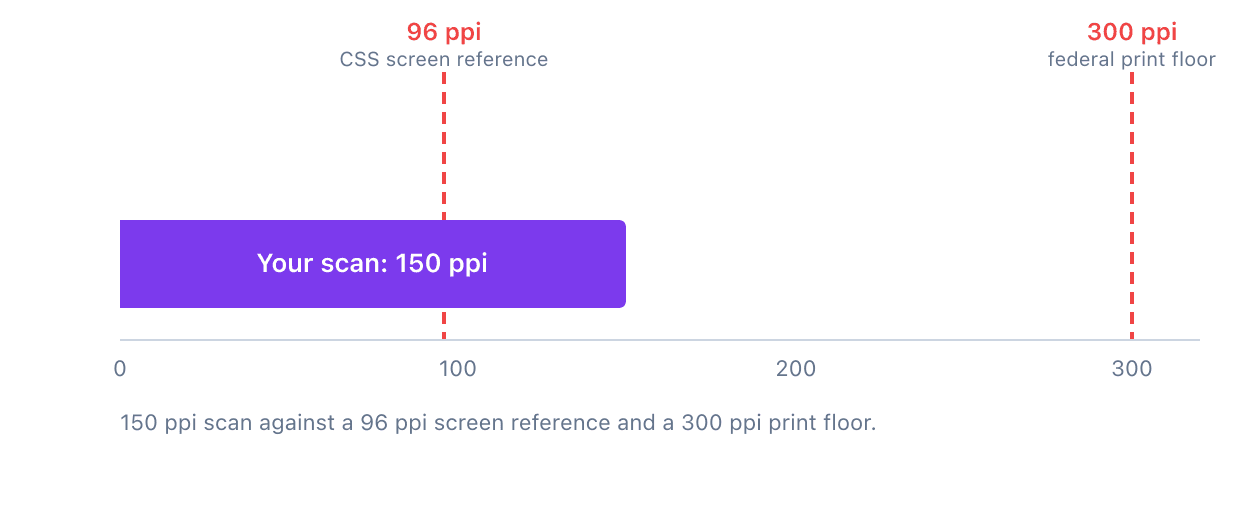
Because your monitor cannot show you what was removed, and your printer can.
The CSS specification anchors the reference pixel to a device pixel density of 96dpi and defines 1px as 1/96th of 1in, in the W3C's CSS Values and Units Level 4 specification, section 6.2. That is a definition written to keep lengths consistent across devices, not a measurement of your panel. It is still the grid page layout is reasoned about on.
36 CFR section 1236.50 puts the floor for permanently retained US federal paper records at 300 ppi, and at 400 ppi wherever fine detail has to survive the scan.
A scan downsampled to 150 ppi sits between the two. It carries roughly 1.56 times the linear sample density of a 96 ppi reference grid, which is why it survives a 100 percent view on a conventional display, though a high-DPI screen renders roughly twice as many device pixels per CSS inch and eats that margin, and half of the 300 ppi federal floor, which is why it prints soft and fails as a record. The same file is over-specified for the monitor and under-specified for the paper.
So print one page, or open the file at print resolution, before you delete the original rather than after.
Can you fix a blurry PDF after the fact?
No. Downsampling removed samples that are no longer stored anywhere, and lossy re-encoding discarded detail that was never written to the file. Upscaling tools recover none of it. They generate plausible detail from a model of what the pixels probably were, which on a photograph is often pleasant and on a signed document is worse than blur, because it produces a legible character nobody typed.
The decompression confusion is worth clearing up, because it is why "restore a compressed PDF" pages exist. A PDF genuinely does contain reversible compression: ISO 32000-1's filter table defines FlateDecode as reproducing "the original text or binary data," exactly, at stream level. Further down the same table defines DCTDecode as reproducing "image sample data that approximates the original data." Anything promising to restore quality by decompressing is conflating the two.
OCR does not sharpen anything either. You can add a searchable text layer with OCR and the page will look identical, because OCR reads the pixels and writes an invisible layer over them. Run it anyway, for the other reason: the recipient gets text they can search and copy. If the scan will not produce searchable text at all, that is a different failure: how to make a scanned PDF's text selectable covers it.
Exporting to images is the other thing people reach for, and it will not help. You can export the pages as images, but a blurry page becomes a blurry JPEG, and rebuilding a PDF from those adds a second lossy pass to a page that already lost detail. That tool is right when you need a page as an image for something else, a slide or an upload form. It is wrong here.
What works, in order: find the original, re-export from the source document, re-scan at 300 ppi or higher, or accept the file. And do not compress the compressed copy. The libjpeg-turbo manual states the consequence: "Image quality loss will accumulate; after ten or so cycles the image may be noticeably worse than it was after one cycle."
How to compress without this happening again
Keep the original. Everything below is secondary to that one habit, and it is the only item on this list that makes the damage recoverable.
Look at the file before picking a setting first. Divide the size by the page count, then try to select text. Megabytes per page with nothing selectable is a scan, so the image settings are the only ones that matter. Well under a megabyte per page with selectable text is a text document, and compressing harder will not help.
Compress once, from the original. Not from yesterday's output, and not twice with two tools because the first attempt missed the number.
Match the setting to the destination. Screen reading tolerates the most. Print wants 300 ppi, and a permanent record wants 300 as a floor and 400 where fine detail matters, per the federal standard above. If you are working to a hard size ceiling rather than a destination, getting a PDF below 1MB covers what has to give. Choosing the lowest setting because it makes the smallest file is how most people arrive here.
For scans, go greyscale before downsampling harder. Dropping the colour channels on a black-on-white document removes data you were not using. And if the scan has not happened yet, scanning lower beats scanning high and compressing hard: one clean sampling pass instead of two lossy ones.
For the tool paths themselves, Acrobat, Preview and the browser, I covered those in get a PDF under Gmail's 25MB limit.
The short version
Three lines of diagnosis. Uniform softness at every zoom means pixels were removed. Grain and banding along glyph edges on an otherwise sharp page means the codec was pushed too hard. Blurry text at all means the page is an image, either from a scanner or because a tool rasterised it.
Then the decision, which is short, because none of it is reversible. The only real question is whether the original still exists.
The thing worth taking away is that a compressor is not one operation. It is two, tuned separately, and they fail differently. Knowing which one ran on your file is the difference between a setting you change next time and a document you have lost.