PDF Too Large to Email? How to Get Under Gmail's 25MB Limit
Your PDF bounced from Gmail's 25MB attachment limit for one of two reasons: too many scanned page images, or too many pages of plain text. Here's how to tell which one you have, and what actually fixes it.
If your PDF is too large to email, the fix depends entirely on what is making it large. Gmail caps attachments at 25MB, and a PDF over that is almost always carrying scanned page images rather than text. So divide the file size by the page count first. Megabytes per page means a scan, and compressing the images will work. A fraction of a megabyte per page across hundreds of pages means text, which barely shrinks whatever tool you use. Split that one instead.
There is a second thing going on, and it explains the attachment that leaves fine and bounces two hours later. The size your composer checks and the size the recipient's server checks are not the same number.
TL;DR: Google documents Workspace send limits as measured before encoding, and receive limits as measured after, which adds about a 37 percent increase. For personal Gmail it documents neither. Base64 plus the line breaks the format requires is 36.84 percent, so 25MB of attachment is about 34MB on the wire, against an Exchange Online default receive ceiling of 36MB. Compress if the PDF is image heavy. Split if it is long and text based.
What is the actual Gmail attachment limit?
Twenty-five megabytes is the limit for personal Gmail, and it applies per message rather than per file. Google's own wording is direct: "For personal Gmail accounts, the limit is 25 MB." Exceed it and nothing bounces the message outright. Instead, Gmail Help explains that Gmail "automatically removes the attachment and adds it as a Google Drive link in the email."
Per-message limits matter more than people expect. Three 9MB PDFs add up to a 27MB message, even though each attachment looked fine alone. Your storage quota blocks attachments too, in both directions: "If you reach your storage limit, you can't send or receive attachments." That explains a surprising number of forum threads where the file is obviously small enough.
In February 2026 Google raised the ceiling for exactly one tier. Enterprise Plus users can now attach files up to 50MB, "doubling the previous 25MB limit," with rollout starting 23 February 2026 and the larger size available only in web Gmail, according to the Workspace Updates blog. Every other edition stayed at 25MB.
The interesting column in the table below is receive, because of what is missing from it. Google publishes receiving limits for Enterprise Standard and Enterprise Plus only: none for Business, none for Education, none for personal Gmail. Not published means the vendor has not stated one, not that no limit exists.
Sources: Gmail Help 6584, Workspace sending limits, Workspace receiving limits, Outlook.com sending limits, Exchange Online limits, KB 2813269, and Yahoo Help. All retrieved 29 July 2026.
| Account | Send | Receive | What the limit measures |
|---|---|---|---|
| Gmail, personal | 25MB | Not published | Not documented |
| Workspace Business / Education | 25MB | Not published | Send: before encoding |
| Workspace Enterprise Standard | 25MB | 50MB | Send before encoding, receive after |
| Workspace Enterprise Plus | up to 50MB (web only) | 70MB | Send before encoding, receive after |
| Outlook.com | 25MB | Not published | Not documented |
| Exchange Online / Microsoft 365 | 35MB default | 36MB default | After encoding |
| Outlook on the web | 112MB | n/a | After encoding, composer discounts 25% |
| Outlook desktop, internet accounts | 20MB | n/a | The files you picked, checked locally |
| Outlook desktop, Exchange accounts | 10MB default | n/a | The files you picked, checked locally |
| Outlook for iOS and Android | 33MB | n/a | Not documented |
| Yahoo Mail | 25MB | 25MB | "Sum of all attached files", basis not documented |
Why did it send and then bounce?
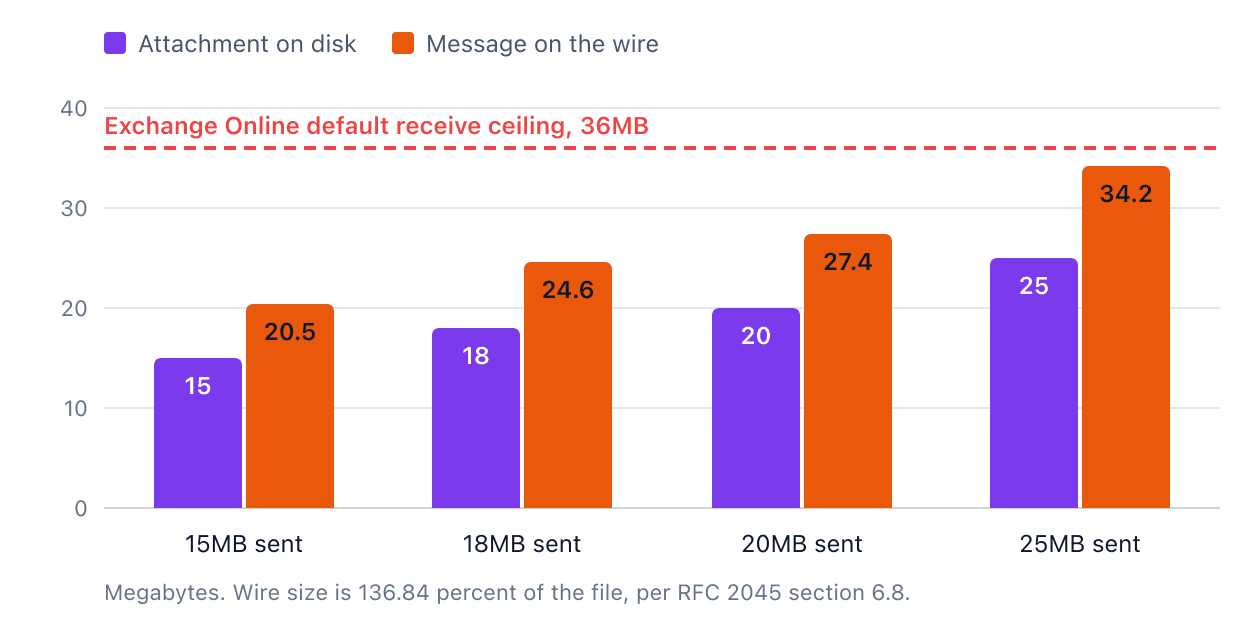
Because the number your composer checked and the number the recipient's server checked are two different numbers. Email cannot carry raw binary, so attachments are re-encoded as text before transmission. That encoding makes the message substantially larger, and the receiving server measures the larger version.
One caveat first, because it governs everything below. Both of Google's encoding statements sit on the Workspace administrator pages. The consumer Gmail help page states 25MB with no encoding qualifier at all, so whether personal Gmail measures before or after encoding is undocumented. What follows is documented precisely for Workspace, for Exchange Online and for SMTP itself.
Two terms, defined once. MIME is the standard that lets an email carry attachments alongside text. Base64 is the encoding MIME uses to represent binary data as printable characters. RFC 2045 states its own cost: "the encoded data are consistently only about 33 percent larger than the unencoded data." The same section adds the rule everyone forgets, that the output "must be represented in lines of no more than 76 characters each," each line CRLF terminated, according to RFC 2045 section 6.8.
The math breaks into three steps. Base64 encoding itself is 4 divided by 3, a 33.33 percent increase. The line breaks required by RFC 2045 add a further 78 divided by 76, a 2.63 percent increase. Multiplied together, 1.333333 times 1.026316 equals 1.368421, a combined increase of 36.84 percent.
Which is why two vendors publish two different numbers and both are right. Google says receive limits are "the limit after encoding, which adds about a 37% increase." Microsoft says messages routed outside its datacenters are "subject to an additional 33% translation encoding increase, in which case the maximum message size is 112 MB." Google counts the mandatory line breaks and lands on 36.84. Microsoft quotes the base64 ratio alone: 150 divided by 1.3333 equals 112.5, which is where its 112MB comes from. I use 36.84 percent throughout, including against Microsoft's own ceilings, because that is what actually travels, whatever a vendor rounds to.
On the wire there is no ambiguity at all. SMTP defines message size as "the number of octets ... to be transmitted by the SMTP client," and a server refusing one answers with code 552, according to RFC 1870 section 5.
So 25MB of attachment is about 34.21MB by the time it reaches a receiving server. Exchange Online's default receive limit is 36MB, and administrators can set anything from 1MB to 150MB.
That is 1.79MB of headroom on a default configuration, before MIME headers and the message body are counted.
The same math scales across other file sizes. Base64 encoding plus the line breaks the format requires adds 36.84 percent on the wire in every case, measured against Exchange Online's 36MB default receive ceiling. These figures come from the base64 math above and from Exchange Online's documented receive ceiling, both retrieved 29 July 2026.
Almost every page on this keyword claims your real Gmail ceiling is 17 to 18MB, so it is worth explaining where that number actually comes from and when it holds up. The arithmetic is correct: 25 divided by 1.3684 equals 18.27. Apply 36.84 percent of encoding overhead to an 18.27MB file and you land back on 25MB.
The figure is not fabricated. It is applied to the wrong layer. It describes what fits under a limit measured after encoding, which is what a receiving server and an SMTP transport both enforce. Against Gmail's send limit it describes something Google documents differently for Workspace and does not document at all for consumer accounts.
That distinction is more useful than declaring everyone wrong. If you are asking what your recipient's server will accept, working back from a documented post-encoding ceiling is sound: 36MB of Exchange Online default means about 26MB of raw file. If you are asking why the compose window rejected you, Google does not document what that window measures, so the 18MB figure is a guess wearing the clothes of an answer.
Is your PDF big because of images or because of pages?
Divide the file size by the page count. That ten-second test decides everything that follows, and the competing pages I checked on this keyword skip it. A page of text is stored as instructions: which font, which glyphs, at which coordinates. A scanned page is stored as a photograph of a page.
Scan resolution is why. For US federal agencies digitising permanent paper records, 36 CFR section 1236.50, with the text confirmed against Cornell's Legal Information Institute, sets 300 pixels per inch as the minimum, rising to 400 ppi where fine detail has to survive. At 300 ppi a US Letter page is 2,550 by 3,300 pixels, which is 8,415,000 pixels of uncompressed image data per page. Every one of them is stored. The words are not stored as words at all.
So several megabytes per page means a scan, which compresses well because there is image data to remove. Well under a megabyte per page across two hundred pages means text.
If you have a hard number to hit rather than just an email limit, see how to compress a PDF below 1MB.
How to compress a PDF down to email size
Aim for about 20MB of raw file rather than 25MB. Twenty megabytes travels as roughly 27.37MB once encoded, clearing an Exchange Online default receive limit of 36MB with 8.63MB to spare. Squeeze up to 25MB and the margin falls to 1.79MB, which is narrow once MIME headers and the message body are counted.
Acrobat has File, then Save as Other, then Reduced Size PDF. Preview on a Mac has File, then Export, then Quartz Filter, then Reduce File Size, with no quality setting exposed, so open the result before you send it.
Or you can compress a PDF in your browser. I built JoyPDF, the compressor included, and it runs entirely on your machine: the document is parsed, re-encoded and written back out locally, never transmitted. That matters more than usual here, because the PDF you are about to shrink may well be a scanned contract, a medical record or a court filing.
Nearly all the saving in compression comes from the images, and it comes first. The compressor decodes each embedded image, downsamples it to a lower pixel grid, and re-encodes it.
Downsampling is the irreversible step: those pixels are gone, and no later pass restores them.
Re-encoding is the second lever. JPEG works by discarding high-frequency detail, and text inside a scan is nothing but high-frequency detail, sharp black-to-white transitions at every glyph edge. Push quality down and those edges pick up a faint grey halo. It reads as slightly dirty paper, which is why aggressive compression looks worse on a scan than on a photograph.
After that come the small wins: fonts subset to the glyphs actually used, duplicate image streams merged, embedded thumbnails, unused objects and stale metadata dropped.
Which is exactly why a text PDF resists compression. Its content streams are already deflate-compressed by the format itself, there are no images to downsample, and the structural cleanup is measured in kilobytes on a file measured in megabytes.
If the output came back soft or pixelated, that is a separate problem with its own causes. See why your PDF is blurry after compressing it.
When should you split the PDF instead?
Split when the document is long and text based, because there is very little image data for a compressor to remove. A 40MB scan is a compression problem. A 40MB, 900-page text document is a splitting problem.
Pick boundaries the document already has: volumes, exhibits, chapters, date ranges. There is more on choosing them in how to split a large PDF into separate chapters. Put the numbering first in each filename so the parts sort correctly. You can split a PDF by page range, or remove pages from the PDF if the bulk is a 200-page appendix nobody asked for.
Splitting buys more headroom than it looks like. Two 15MB attachments travel as roughly 20.53MB each once encoded, comfortably under Exchange Online's 36MB default, where a single 30MB file travels as about 41.05MB and is refused before it lands. I am scoping that comparison to Exchange Online deliberately, because its default receive ceiling and its measurement basis are both documented and both apply to an ordinary business mailbox. Google publishes the same pairing, but only for two Enterprise editions.
One caveat every method list I have read skips. If the document functions as a single record, a contract, a signed agreement, a court filing, a certified transcript, splitting it may be wrong regardless of file size. Pagination, exhibit references and signature pages all assume one document.
What about the Google Drive link Gmail offers?
It works, it is the fastest option available, and it changes where the document lives. Most people accept it without thinking about what changes.
Three consequences follow from the mechanism. The file is now stored in your Drive, not merely sent. Access is governed by Drive's sharing permissions rather than by who received the email, so if the link is set to anyone with the link, forwarding the message forwards the access. And the link outlives the message: leave it in place and the document stays reachable indefinitely.
None of that is a criticism of Google. It is a description of what the mechanism requires, and the same question applies to the compressor you were about to use: any tool that processes your PDF on a server requires you to transmit the document there first.
Worth deciding deliberately when the document is a client's.
What if it still will not send?
Start with the error text, because it tells you which layer stopped you. Microsoft's is documented word for word: "The file you're attaching is bigger than the server allows. Try putting the file in a shared location and sending a link instead," according to KB 2813269.
Microsoft publishes at least seven attachment numbers, and every article I have read quotes one of them as the Outlook limit. Those seven numbers sit at six different layers, separated in the table above. The desktop client caps internet email accounts at 20MB locally, through a registry value named MaximumAttachmentSize, and defaults to 10MB for Exchange accounts. If the desktop client stopped you, you never reached a server at all.
Storage full. Gmail blocks attachments in both directions once you hit your quota, which looks nothing like a size error.
A gateway stripped it. The message left, a corporate filter quarantined the attachment, and the recipient sees an empty email.
A file that will not open at the other end. Size is only one reason a PDF fails to open; seven causes and their fixes covers the rest.
A file that grew after an edit. It is usually carrying incremental update history, where the editor appended a new revision instead of rewriting the file. A save-as or a rewrite pass collapses it. If that does not help, the object structure may be damaged: repair the PDF first, then compress.
Compression barely moved a scan. It was already optimised, or saved with lossless image compression a second pass will not improve. Re-scan lower and in greyscale. OCR on the scanned PDF will not shrink it, but it gives the recipient searchable text, which is usually what they wanted.
The short version
When a PDF is too large to email, divide the file size by the page count first. Megabytes per page means a scan, so compress the images. A fraction of a megabyte per page means text, so split it, unless the document only makes sense whole. If the file is confidential, note that both standard fixes, a Drive link and a server-side compressor, move the document somewhere it was not before.
The number worth remembering is not a lower send ceiling. It is that the server at the other end measures something roughly 37 percent bigger than what you attached. That is why a file can clear your composer and fail hours later, and why 20MB is a better target than 25MB.