PDF Won't Open? 7 Reasons and How to Fix Each One
Before you touch a single setting, drag the file into a Chrome or Firefox window. If it opens, your PDF is fine and something else is the real problem, and this article walks through all seven actual causes and the fix for each one.
If your PDF won't open, don't touch a setting yet. Drag the file into a Chrome or Firefox window instead. It takes about ten seconds and answers the one question that decides everything else: is the file actually broken, or is something else refusing to open a perfectly fine one.
If the browser opens it, the bytes are intact. The problem is your reader, the file's location, or a permission, which is reasons 3, 4 and 6 below.
If the browser also refuses, open the file in a plain text editor and look at the very first line. A real PDF starts with %PDF- and a version number. That covers reasons 1, 2, 5 and 7.
Before changing any setting, drag the file into a Chrome or Firefox window. If the browser opens it, the file is intact and the problem is your reader, your permissions or your file path. If the browser also refuses, open the file in a text editor: a real PDF starts with %PDF-. Firefox names the failure precisely. Chrome shows the same message for every cause.
| # | Cause | Does a browser open it? | What to check | Recoverable? |
|---|---|---|---|---|
| 1 | Download or attachment never finished | No | File size against the source | No, missing bytes are gone |
| 2 | Not actually a PDF | No | First line, should read %PDF- | N/A, nothing to repair |
| 3 | Still a cloud placeholder | Depends | Whether the sync client finished | Yes, finish the download |
| 4 | Access, permission or path blocked | Yes | The exact wording and file location | Yes, usually a settings fix |
| 5 | Viewer can't render this kind of PDF | Yes, partially | Whether it's XFA or unsupported encryption | Depends on the feature |
| 6 | Reader or its install is broken | No, and nothing else opens either | A second file, a second app | Yes, reinstall or reconfigure |
| 7 | The structure is genuinely damaged | No | qpdf --check exit code | Sometimes, never past a missing /Root |
What Does It Mean If Your PDF Opens in a Browser but Not in Acrobat?
It means the bytes are intact, because Chrome and Firefox parse the file with their own engines and never consult Acrobat at all. Three independent parsers typically sit on one machine: PDFium in every Chromium browser, pdf.js in Firefox, and Acrobat's own. They disagree by design, since each implements the same specification with different tolerances for files that don't strictly comply.
Firefox tells you more than Chrome does, because pdf.js throws different exception types for a parse failure versus a transport failure. A parse failure shows "Invalid or corrupted PDF file." A transport failure shows "Missing PDF file." or "Unexpected server response." (pdf.js viewer strings). Chrome collapses every non-password failure into one generic string instead: "Failed to load PDF document.", straight from Chromium's own source (Chromium pdf_strings.grdp). Edge shows the identical string, since it runs the same engine.
There's a console step worth knowing. Open Firefox's developer console before reloading the file. pdf.js logs its real internal error, its own version number, and a stack trace beneath the dialog (pdf.js app.js). If that console shows the line "Indexing all PDF objects", pdf.js has abandoned the cross-reference table and started scanning the raw bytes for objects instead (pdf.js xref.js). That single line means the index is broken, not necessarily the content behind it.
| Viewer | Exact string shown | What it actually means |
|---|---|---|
| Chrome, Edge, and every other Chromium browser | "Failed to load PDF document." | PDFium collapsed every non-password failure into one message. The string carries no diagnostic detail on its own. |
| Firefox | "Invalid or corrupted PDF file." | pdf.js threw a genuine parse exception. The file arrived but its structure failed validation. |
| Firefox | "Missing PDF file." or "Unexpected server response." | The file never actually arrived. A transport failure, not a structural one. |
Reason 1: Did the Download or Attachment Actually Finish?
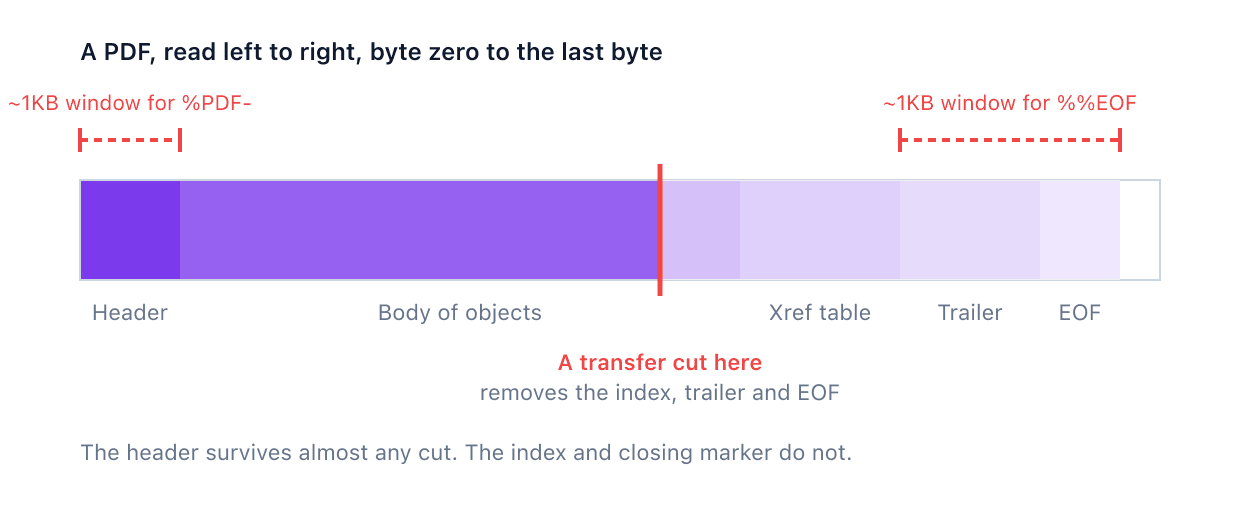
A PDF is written header first and its cross-reference table last, so a transfer that stops partway through removes exactly the part a reader needs. The %PDF- header sits at the very start and survives almost any truncation, so Finder, Explorer, and every thumbnailer still call the file a PDF. Nothing looks wrong until something actually tries to parse the structure.
The structural tell is what disappears: the closing %%EOF marker, and a working startxref pointer that tells the reader where the cross-reference table begins. In a truncated file, that pointer either vanishes or points past the end of the file.
The practical check is the file size, compared against the source: a download manager, an email server, a cloud share. pdf.js even has a dedicated string for the extreme case: "The PDF file is empty, i.e. its size is zero bytes." (pdf.js document.js). A zero-byte download is its own distinct, easy-to-confirm failure.
This is documented and recent, not folklore. In August 2025 the new Outlook desktop client corrupted cached PDF attachments before opening them. Microsoft acknowledged the issue under ID EX1131606. In its own words, users "may be unable to open or preview PDF attachments in the new Outlook desktop experience and Outlook on the web" (Microsoft Q&A). The fix, described as one "to bypass the offline caching of attachments," reached full deployment by 16 August 2025. One reader in that same thread guessed at a cause of their own: Outlook persisting the file to disk and cutting it off partway. That's a user's theory, not a Microsoft finding.
Nothing recovers bytes that were never written. Download the file again, or ask the sender to resend it. If it came from a cloud share, download it fully before opening rather than previewing it in the browser.
Reason 2: Is the File Actually a PDF?
Open it in any plain text editor and check the very first line. A real PDF begins with %PDF- followed by a version number, and nothing else counts. <!DOCTYPE html or <html: the download actually captured a login page, an error page, or a captcha, saved under a .pdf name anyway. Unreadable binary with no %PDF- anywhere: some other file type, renamed. Nothing at all: a zero-byte download.
The extension barely matters to the viewer. Windows and macOS use it only to decide which application to launch. That application then reads the actual bytes and rejects them if they don't match, which is why a renamed .doc handed to a PDF reader gets bounced immediately.
The tolerance here is real but not a single number, so don't trust any page that gives you one. pdf.js scans the first 1024 bytes for the signature and, per its own source comment, keeps parsing even if it finds nothing (pdf.js document.js). Ghostscript's documentation says Acrobat "will scan the first 1000 bytes or so for this string, and ignore any preceding garbage" (Ghostscript, Use.html). The PDF Reference's own implementation notes put the figure at 1024 bytes too (via Apryse). Say "roughly the first kilobyte" and leave it there.
Here's the actual insight. Junk sitting in front of the header doesn't usually stop a file opening, since every mainstream reader tolerates a kilobyte of it. What that junk does is shift every byte offset recorded in the cross-reference table by exactly its own length. A reader who accidentally prepends a byte or two, through a bad copy or an editor that adds a stray character, hasn't damaged the content. They've desynchronised the index that points to it.
Reason 3: Is the File Still in the Cloud?
OneDrive's Files On-Demand and an unsynced Dropbox folder both show a file that isn't actually on the disk yet. The placeholder reports a real filename, a real icon, and a real size, all of which are metadata rather than content. Opening it triggers a background download, and if that fails silently, you get the same message Acrobat gives for a damaged file.
Two Adobe Community threads confirm this directly. On one, the accepted answer traced the failure to OneDrive cloud-only placeholders, identifiable at a command prompt by a parenthesised size (Adobe Community 1507251). On another, an "Access denied" chain resolved once the poster let Dropbox finish syncing, in their own words: "It seems I hadn't let it sync since getting my new computer a month ago." (Adobe Community 11505381).
Force the file to download fully before opening it. In OneDrive, right-click and choose "Always keep on this device." Check the sync client actually finished, not just started. If in doubt, copy the file to a local folder outside any synced directory and try again. This is also why the identical file opens fine on a colleague's machine and not yours, which otherwise looks baffling.
Reason 4: Is Something Blocking Access to the File Rather Than the File Itself?
If the error mentions access, permissions, or a path, the file is probably fine and the operating system is standing in the way. Two Adobe Community threads, years apart, center on the same "Access denied" string. In one, the file lived on a mounted network drive with no drive letter; other programs opened it fine, and unchecking Acrobat's Protected Mode setting resolved it once the file also moved to a mapped path (Adobe Community 1512508).
Path length and filename syntax matter more than people expect. On one thread, double-clicking did nothing at all, no error, no dialog, and the marked answer was to copy the file to the desktop (Adobe Community 15087792). On another, a file synced through SharePoint produced "There was an error opening the document, The file name, directory name or volume lable syntax is incorrect" (the typo is the original poster's) (Adobe Community 15415352). Copying the file to a short, local path is a fifteen-second test that resolves both cases and that almost nobody in this field suggests.
The blank preview pane isn't a failed open. Since the Windows security updates released on and after 14 October 2025, File Explorer disables previews for internet-downloaded files. It shows this message instead: "The file you are attempting to preview could harm your computer." Microsoft says plainly why: the update "mitigates a vulnerability where NTLM hash leakage might occur if users preview files containing HTML tags referencing external paths" (Microsoft Support). The file still opens normally on a double-click. Right-click it, choose Properties, then Unblock, and the preview returns.
One sentence on Protected View: it opens the file in a restricted sandbox and disables some features, it doesn't stop the file opening. If your PDF genuinely won't open, you're unlikely to actually be looking at Protected View.
Reason 5: Can Your Viewer Actually Render This Kind of PDF?
Some PDFs use features that only Acrobat implements, and everything else politely renders an apology page instead of an error. The exact text, quoted verbatim: "Please wait... If this message is not eventually replaced by the proper contents of the document, your PDF viewer may not be able to display this type of document." (Quick PDF Library FAQ; also documented at Atlassian's Confluence KB).
Here's the part every other article on this topic gets wrong. The file opened correctly. That message is the page's actual, deliberately authored fallback content. The real form lives in a separate XML structure, XFA, that only Acrobat and Reader interpret. The document itself instructs a capable reader to render that structure instead, and a viewer without XFA support simply draws the page it was given: the apology.
This is getting worse over time, not better. XFA forms are no longer part of the PDF 2.0 standard (PDFlib), and they're being phased out of the specification while the files themselves persist in government and insurance workflows built around them years ago. The honest fix is Adobe Acrobat Reader, worth saying plainly even though it doesn't route anywhere else.
Encryption a viewer doesn't implement fails differently. When a reader can't recognize a security handler revision, it can't derive the encryption key at all, so it fails at parse time before ever asking for a password. iText's library, for one, throws the literal message Unknown encryption type R = 6 on a revision it doesn't support (iText). The mechanism is what matters, not a version cutoff: an unsupported revision fails before any password prompt, on any reader that doesn't implement it.
Certificate encryption is the one genuinely unrecoverable case in this whole list. The file's key is wrapped to a specific recipient's certificate, and opening it requires that person's private key in their local certificate store. Move the identical file to a second machine and there's nothing to unwrap it with. If the original digital ID was deleted, the document stays permanently inaccessible.
One boundary worth stating clearly: a password prompt means the PDF is opening correctly and simply asking for a password, a different problem covered in why a PDF asks for a password you never set.
Reason 6: Is Your PDF Reader the Thing That's Broken?
If every PDF fails to open, not just this one, the file was never the actual problem. Try a second PDF you know is fine, then try a second application on the same file. If nothing opens anywhere, the fault is the install or the file association.
File association is a distinct issue from Reason 2. Sometimes the file opens with the wrong application, or Windows displays it as a "Chrome HTML Document" even though the underlying bytes are a perfectly valid PDF. That's a labelling problem, not a fake-file problem.
Chrome can also be set to download PDFs instead of opening them in its own viewer, which looks exactly like a failure to open. Check chrome://settings/content/pdfDocuments (Google Chrome Help). A reader that launches and then vanishes, the window flashing before anything renders, points at the install rather than any document.
If Chrome specifically is the problem, HowToGeek's walkthrough is screenshotted, scoped tightly, and genuinely serves that reader better than this article can. On Android, PDFGear's troubleshooting page covers more ground than this article should attempt. Both are worth the click if that's your exact situation.
Reason 7: What if the File Really Is Damaged?
Damage means the index is broken, the content is missing, or both, and only the first of those is something you can actually recover. A PDF is a header, a body of objects, a cross-reference table listing every object's byte offset, a trailer, and a closing %%EOF marker. Readers parse from the end backward, using the trailer to find the table and the table to find everything else.
Both pdf.js and PDFium rebuild a broken cross-reference table by scanning the raw bytes for object markers instead of trusting it. PDFium's own source code concedes how common this is. In the engine's own words: "Ideally, all the cross reference entries should be verified. In reality, we rarely see well-formed cross references don't match with the objects." (PDFium cpdf_parser.cpp). A separate 2025 survey of malformed cross-reference tables found every viewer tested opened files that technically violate the specification, because "most parsers are extended to support non-compliant files" (Eliot Jones, PdfPig).
Recovery fails in a specific order. Objects compressed inside an object stream are invisible to a scan looking only for literal obj markers. A missing document root is terminal: qpdf reports it plainly as "unable to find /Root dictionary" (qpdf QPDF.cc). Bytes that were never written are simply gone.
The diagnostic you can actually run is qpdf --check yourfile.pdf. It reports on the file's structure, encryption, linearization and stream encoding, and exits 0 for no errors, 2 for errors, 3 for warnings without errors (qpdf CLI docs). qpdf's own documentation is candid about its limits. Recovery "is triggered by a variety of situations. While usually successful, it uses heuristics that don't work on all files." Running the check again with --suppress-recovery tells you something a viewer never will: whether the file is genuinely valid, or whether your reader has been quietly repairing it every time you open it.
Repair by re-distilling costs more than it looks like. Pushing a broken file through Ghostscript's pdfwrite device doesn't repair it in any real sense. Ghostscript's own manual says the output "should look the same as the original, but the actual insides of the PDF file are not the same as the original." It adds a second caveat: "any part of the original input which does not actually make marks on the page (such as hyperlinks, bookmarks, comments etc) will normally not be present in the output" (Ghostscript, VectorDevices). That's a reasonable trade for a broken invoice. For a signed contract or a tagged, accessible document, it can quietly discard the part that mattered.
If qpdf --check comes back clean beyond a missing root, or the damage looks like a broken index rather than missing content, my repair tool rebuilds a PDF's structure directly in your browser, without uploading it anywhere first. It can't restore bytes a transfer never delivered. Nothing can.
I built JoyPDF's tools to parse PDFs entirely client-side, in the browser, which means these seven failure modes aren't abstract to me. They're the failure modes the parser is designed to recover from.
| What the scan does | What it rebuilds | What it cannot touch |
|---|---|---|
| Scans raw bytes for obj and endobj markers | A missing or broken cross-reference table | Objects hidden inside a compressed object stream |
| Looks for a trailer and a document root | The path from trailer to catalog to pages | A document with no /Root at all, which is terminal |
| Reassembles whatever bytes are physically present | Every object that survived the transfer | Bytes that were never written in the first place |
How Do You Keep This From Happening Again?
Most of this is habit, not software, and none of it requires reconfiguring anything. Download rather than preview when the file actually matters, and check its size against the source before you delete that source.
Keep filenames short and avoid deep synced folder paths for anything you need to open reliably, especially across OneDrive, Dropbox or SharePoint.
If you're the one sending the file, think about how long it needs to survive. A document that has to open correctly on an unknown machine five years from now is an archival problem, not a compression one. Converting it to PDF/A produces a conservatively structured file with every font embedded, built for exactly that kind of longevity.
If someone tells you your PDF won't open, ask them to try a browser before you resend anything. It costs them ten seconds, and it tells you immediately whether the problem is your file or their machine.
The Short Version
The triage is three lines. If a browser opens the file, it's fine, and the problem is your reader, your permissions or your path. If the first line isn't %PDF-, it was never a PDF to begin with. If qpdf --check fails specifically on the document root, the structure is genuinely gone.
The honest boundary is worth repeating. A truncated file can't be recovered, whatever a repair tool promises, so the right move is asking for it again rather than buying software.
What actually makes this different: an error dialog is one application's opinion, not a diagnosis. At least two other parsers are already sitting on your machine, and asking one of them is faster than anything else in this article.